How to Convert JPG to PDF: Combine Multiple Photos Into One PDF (Free)
Turn phone photos of documents into one neat PDF, in the right page order, on any phone or computer. Free, no watermark, and your photos are never uploaded.
You photographed every page of a form, an agreement or your marksheets with your phone, and now the portal wants one PDF. Sending ten separate JPGs isn't an option. This guide shows how to convert JPG to PDF and combine all the photos into a single file, in exactly the right page order, free and on any device.
Convert JPG to PDF in 4 steps
- Open the free JPG to PDF converter.
- Tap Choose images and select all the photos you want in the PDF, or drag them onto the page.
- Check the order. Use the ↑ and ↓ arrows, or drag a row, so page 1 is at the top. Remove a wrong photo with ×.
- Tap Convert to PDF, then Download PDF.
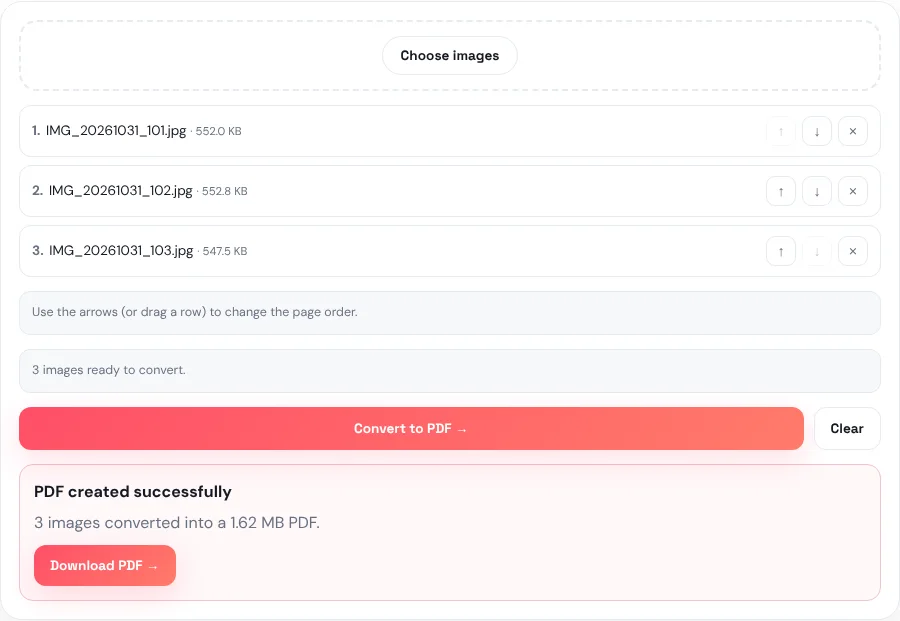
Each photo becomes one page, in the order shown in the list. The file downloads as converted-images.pdf; rename it to something clear, such as Rental-agreement-signed.pdf, before you send it.
Private by design: the PDF is built inside your browser. Your photos are never uploaded to our server, which matters for ID cards, certificates and bank papers.
Getting the page order right
The number before each file (1, 2, 3…) is its page number in the PDF. Photos are listed in the order you select them, which isn't always the order of the document, so check the list before converting:
- ↑ and ↓ move a photo one place up or down; they work well on a phone.
- Drag a row to move it further in one go on a computer.
- Choose images again adds more photos to the end of the list.
- Clear empties the list so you can start over.
Phone cameras name photos by date and time (for example IMG_20261031_101.jpg), so if you photograph the pages in order, picking them in name order usually gives the right sequence straight away.
When you'll need a single PDF
| Situation | Tip |
|---|---|
| Job or exam application asking for one document upload | Check the size limit first; compress the PDF if needed. |
| Rental or sale agreement photographed page by page | Keep pages in order and include the signature page last. |
| Marksheets or certificates for admission | One PDF per document type is easier for the reader than one huge file. |
| Bills and receipts for office reimbursement | Photograph receipts on a dark surface so the edges are clear. |
| ID proof front and back | Put the front first and the back second, as one 2-page PDF. |
| School or college assignments written by hand | Shoot in daylight so pencil and blue ink stay readable. |
Whatever the use, a single, well-ordered PDF looks more professional than a pile of loose photos, and reviewers can read it on any phone or computer without extra apps.
Take photos that make a clean PDF
The PDF looks exactly like your photos, so a few seconds of care when taking them makes a big difference:
- Lay the page flat on a dark, plain surface and shoot from directly above, not at an angle.
- Use daylight or bright, even light, and avoid your own shadow over the page.
- Fill the frame with the page. If there is table or floor around it, trim it first with Crop Image.
- Hold steady and check each photo is sharp before moving to the next page. Zoom in on small print.
- Turn sideways photos upright before converting, with Rotate Image.
Page size, quality and file size
| Question | What happens |
|---|---|
| Will quality drop? | No. JPG photos are placed into the PDF as they are, at their original resolution. |
| What page size is used? | Each page is exactly the size of its photo, so nothing is cropped or stretched. When printed, PDF viewers scale pages to fit the paper. |
| How big is the PDF? | About the size of all the photos added together. In our example, three photos of about 550 KB each made a 1.62 MB PDF. |
| Is there a page limit? | No fixed limit; very large batches depend on your device's memory. |
Phone photos are often several MB each, so a 10-page PDF can easily run to tens of MB, too big for many upload forms. Two ways to make it smaller:
- After converting: run the PDF through Compress PDF. Photo-based PDFs shrink a lot; see our guide on compressing a PDF to under 1 MB or 100 KB.
- Before converting: compress each photo to a set size with Compress Image, then convert. This gives you the most control when a portal sets a strict limit.
PNG, WebP, HEIC and existing PDFs
- JPG to PDF only accepts JPG/JPEG files. For a mix of JPG, PNG and WebP images, use Image to PDF instead; it works the same way.
- iPhone photos in HEIC format need converting first with HEIC to JPG. See our HEIC to JPG guide.
- Need to add the photos to an existing PDF? Convert the photos to a PDF first, then combine both files with Merge PDF. Our guide on merging PDF files into one explains the order and the steps.
- Need to reorder or rotate pages afterwards? Use Organize PDF.
If something goes wrong
- A file is skipped. JPG to PDF accepts only JPG/JPEG. Use Image to PDF for PNG and WebP, or HEIC to JPG for iPhone photos.
- The pages are in the wrong order. Clear the list or move rows with the arrows, then convert again. It only takes a few seconds.
- A page appears sideways. Rotate that photo first, or fix the finished PDF with Organize PDF.
- The PDF is too big to upload. Compress it with Compress PDF, or compress the photos before converting.
- It's slow on a phone with many photos. The work happens on your device, so convert in smaller batches and merge the PDFs afterwards.
Frequently asked questions
How do I convert multiple JPGs into one PDF?
Open JPG to PDF, select all the photos, put them in order with the arrows, tap Convert to PDF and download. Each photo becomes one page of a single PDF.
Can I convert JPG to PDF on my phone?
Yes. It works in the browser on Android and iPhone. Choose the photos from your gallery and the PDF is saved to your downloads.
Does converting JPG to PDF reduce quality?
No. The JPG photos are placed into the PDF at their original resolution, without being re-compressed.
Why is my PDF so large?
A PDF made from photos is about as big as the photos together. Use Compress PDF afterwards, or compress the photos first, to bring it under an upload limit.
Will the PDF pages be A4 size?
Each page takes the exact size of its photo, so nothing is cropped or stretched. If you print the PDF, choose "Fit to page" in the print settings and every page will fit neatly on A4 paper. Cropping photos to the page edges first gives the cleanest result.
Is there a watermark or page limit?
No watermark and no fixed page limit. Very large batches depend on your device's memory.
Are my photos uploaded to a server?
No. The PDF is created inside your browser, so your photos never leave your device.