How to Resize a Photo to Passport or Exam Size in Pixels (Free)
Form asks for a photo of 200 × 230 pixels, or 35 × 45 mm? Here is how to crop and resize any photo to the exact size online, free, and convert mm or inches to pixels.
Online applications rarely just ask for "a photo". They ask for a photo of an exact size, such as 200 × 230 pixels or 3.5 × 4.5 cm, and often a file size limit too. A photo straight from your phone is thousands of pixels wide, so it gets rejected. This guide shows how to get the exact size, without stretching your face, using free tools that run in your browser.
Resize a photo to an exact size in 3 steps
Have the official size ready, for example 200 × 230 pixels (width × height). Then:
- Crop. Open Crop Image, choose your photo, and drag the box so it holds your head and the top of your shoulders, roughly the same shape as the size you need. Tap Crop Image and download the result.
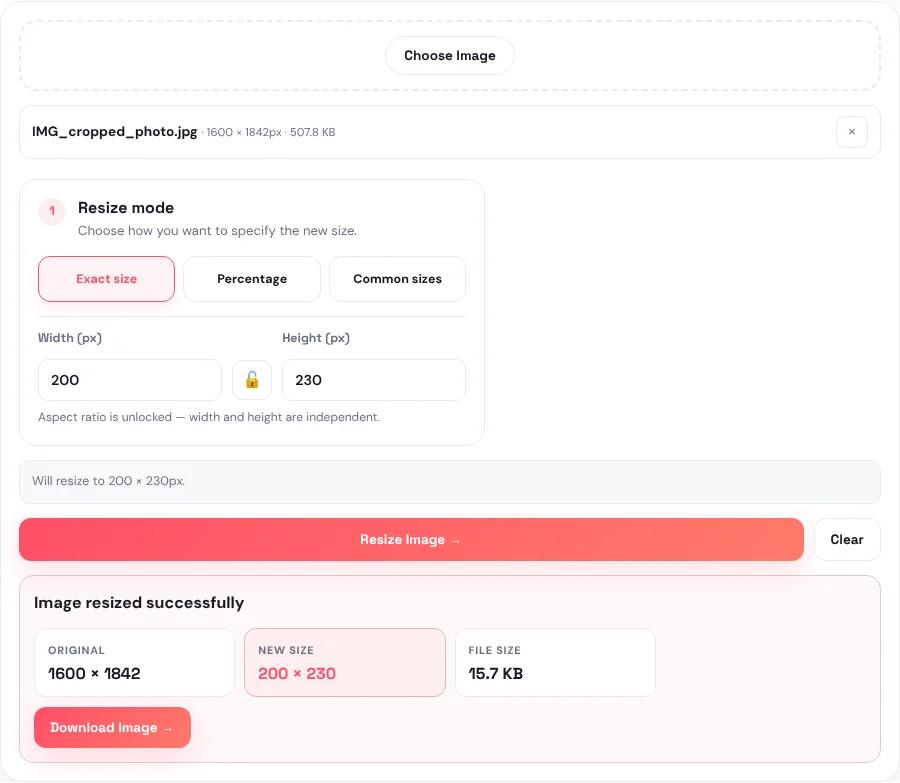
- Resize. Open Resize Image and choose the cropped photo. Keep Exact size selected, tap the lock button so it shows 🔓 (the hint reads "Aspect ratio is unlocked"), then type the width and height, for example 200 and 230.
- Download. Tap Resize Image, check that New size shows exactly what the form asks for, and tap Download Image.
Your photo never leaves your phone or computer: both tools work inside the browser, so nothing is uploaded.
Why you should crop first
The resize tool has a lock for the aspect ratio, the shape of the picture. With the lock on, typing a width fills in the matching height for you, so the photo keeps its shape. That is usually what you want, but a form needs both numbers exactly, and your phone photo is almost never the same shape as 200 × 230.
With the lock off, the tool sets both numbers exactly, and squeezes or stretches the picture to fit if its shape is different. A small difference is invisible; a big one makes a face look too thin or too wide. Cropping to roughly the right shape first means the final resize changes almost nothing.
Quick shape check: 200 × 230 is a little taller than it is wide (height is 1.15 times the width). 35 × 45 mm is taller still (about 1.29 times). When you crop, aim for that shape: a slightly tall rectangle around your head and shoulders.
If the resized face looks stretched, go back to the crop and adjust the box so it is closer to the target shape. It takes a few seconds and makes a clear difference.
What about "Common sizes"?
Resize Image also has a Common sizes option with presets such as 1080 × 1080 and 800 × 800. Those are cropped from the centre to fit, never stretched, which suits square profile pictures. For form photos with their own numbers, use Exact size as described above.
Size given in cm, mm or inches? Convert it to pixels
Some forms give a printed size (for example 35 × 45 mm, or 2 × 2 inches) instead of pixels. To turn that into pixels you need a DPI value: how many pixels fit in one inch. If the form states a DPI, use it. If it does not, 300 DPI is the usual standard for photos.
The formula is simple: pixels = inches × DPI, and inches = mm ÷ 25.4.
| Printed size | At 300 DPI | At 200 DPI |
|---|---|---|
| 35 × 45 mm (3.5 × 4.5 cm) | 413 × 531 px | 276 × 354 px |
| 2 × 2 inches (51 × 51 mm) | 600 × 600 px | 400 × 400 px |
| 3.5 × 3.5 cm | 413 × 413 px | 276 × 276 px |
| 25 × 35 mm | 295 × 413 px | 197 × 276 px |
These are calculations, not official requirements. Always use the exact size and DPI written in the notice for your form, passport office or exam. Rules differ between countries and change over time.
Getting under the KB limit too
Most forms also set a file size, such as 20–50 KB. Good news: resizing to a small pixel size already shrinks the file a lot. In our example, a 507 KB photo became 15.7 KB just by resizing it to 200 × 230.
If your file is still over the limit, open Compress Image, choose a target such as 50 KB or a Custom value, and compress. Do this after resizing, never before, so the compressor does not have to shrink the picture's dimensions. Our full guide on compressing an image to 50 KB, 20 KB or 100 KB covers the details, including why to aim slightly under the limit.
The right order is always: crop → resize → compress.
Common mistakes that get photos rejected
| Mistake | What happens | Fix |
|---|---|---|
| Width and height swapped | A 230 × 200 photo is wider than tall, and the form rejects it or the face looks squashed | Width is always the first number. Check New size before downloading. |
| Resizing without cropping | Your whole body or the room is shrunk into a tiny picture, so the face is too small | Crop to head and shoulders first. |
| Compressing before resizing | The compressor may shrink the dimensions on its own, so the pixel size is wrong | Crop → resize → compress, in that order. |
| Using a screenshot of the photo | Screenshots add borders and lower quality | Use the original photo file from your gallery. |
| Uploading the original by mistake | The form says the file is still too big | Upload the downloaded file, named like photo-resized.jpg. |
The resized file keeps your original name with -resized added, for example IMG_2041-resized.jpg, so it is easy to find in your downloads and easy to tell apart from the original.
Tips for a photo that gets accepted
- Start with a large, sharp photo. Shrinking a big photo keeps it crisp. Enlarging a tiny one makes it soft, because no new detail can be created.
- Plain, light background. Stand in front of a plain wall in daylight. Many forms ask for a white or light background.
- Face the camera, head level, with your face filling most of the frame. Crop so there is a little space above your head.
- Keep JPG. Resize Image keeps the format you give it, so a JPG stays a JPG, which almost every form accepts. If your iPhone saves photos as HEIC, convert them first with HEIC to JPG.
- Check the final file before you upload it: open it and look at the width, height and size, and make sure the face is clear.
Frequently asked questions
How do I resize a photo to 200 × 230 pixels?
Crop the photo to head and shoulders with Crop Image, then open Resize Image, choose Exact size, unlock the aspect ratio, enter 200 and 230, and tap Resize Image.
Will resizing stretch my face?
Only if the photo's shape is very different from the size you enter while the aspect ratio is unlocked. Crop to roughly the right shape first and the change is too small to notice.
How many pixels is a 35 × 45 mm photo?
At 300 DPI it is about 413 × 531 pixels; at 200 DPI about 276 × 354 pixels. Use the DPI your form specifies.
Can I do this on my phone?
Yes. Both tools work in the browser on Android and iPhone. Choose the photo from your gallery and the result is saved to your downloads.
My photo is smaller than the size the form wants. Can I enlarge it?
Yes: Resize Image can make a picture larger, and its Percentage mode goes up to 200%. But enlarging cannot add detail, so the photo will look softer. If you can, take a new photo with your phone camera instead; even a basic phone camera gives far more pixels than any form needs.
Is it safe to resize my ID photo online?
With these tools, yes. The photo is processed inside your browser and is never uploaded to our server.