How to Compress a PDF to Under 1MB or 100KB (Free, No Upload)
PDF too big to email or upload? Learn how to shrink it under 1 MB, 500 KB or 100 KB for free, which compression level to pick, and what to do when it is still too large.
Most upload forms and email services have a size limit: 1 MB, 500 KB, sometimes as little as 100 KB. A scanned certificate or a PDF full of photos can easily be 4 or 5 MB. This guide shows how to get your PDF under the limit, free, without uploading it to anyone's server, and what to do when it still will not fit.
Compress a PDF in 4 steps
This works on a phone, tablet or computer, in any modern browser. The PDF is processed on your own device and never uploaded.
- Open the free Compress PDF tool.
- Tap Choose PDF file, or drag the PDF onto the page.
- Pick a level: Recommended is selected for you. Choose Strong if you need the smallest possible file.
- Tap Compress PDF, check the new size, then tap Download compressed PDF.
Before you upload the result, open it and zoom in on the most important part, such as a signature, a stamp or small print. If it is clear, you are done.
Light, Recommended or Strong?
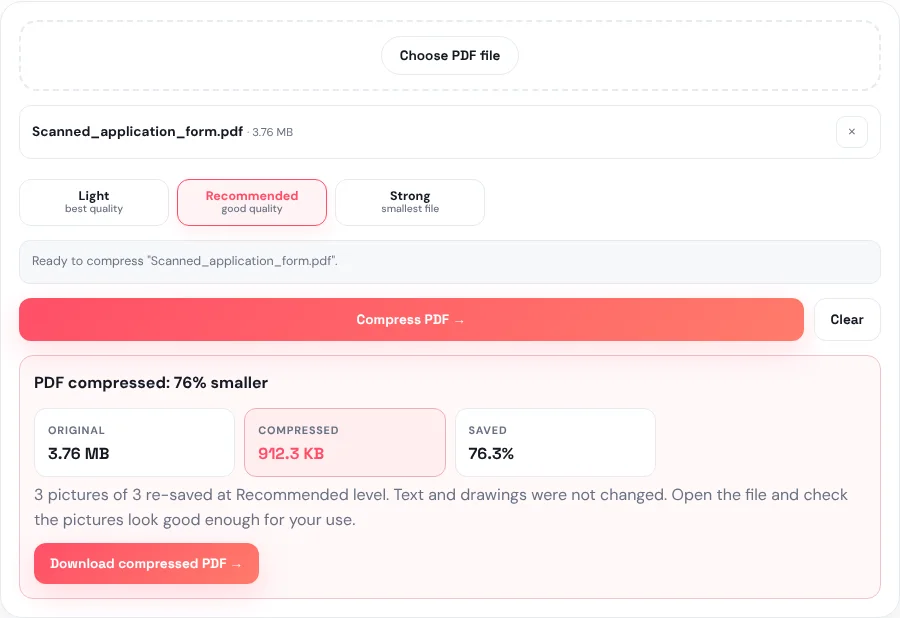
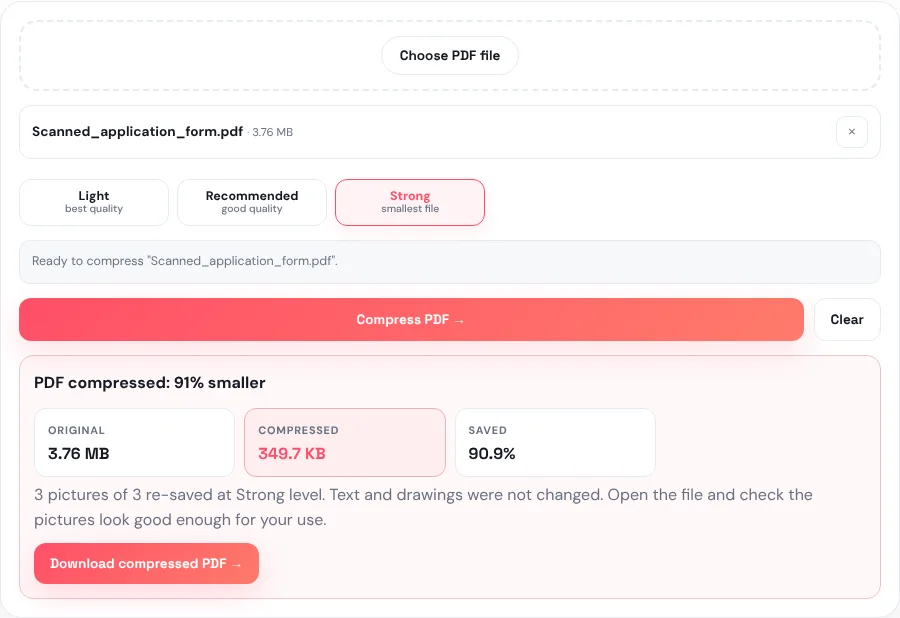
The three levels differ in how hard the pictures inside the PDF are compressed and how large they are allowed to stay. We tested all three on the same 3-page scanned form (3.76 MB):
| Level | Result in our test | Best for |
|---|---|---|
| Light — best quality | 1.86 MB (50% smaller) | Printing, or files where image detail matters |
| Recommended — good quality | 912 KB (76% smaller) | Email and most 1–2 MB upload limits |
| Strong — smallest file | 350 KB (91% smaller) | Strict limits such as 500 KB |
Your numbers will be different: they depend on how many pictures your PDF has and how they were saved. A rough rule: try Recommended first, and only switch to Strong if the file is still over your limit. Strong scales large pictures down further, so photos look softer when you zoom in, but text on a typed page is not touched at all.
Why some PDFs are so big
Almost all the weight of a large PDF comes from its pictures: scanned pages, phone photos of documents, and screenshots. Text and fonts take up very little space.
- Scanned documents store every page as one big picture, so they shrink the most.
- Photo-heavy PDFs, such as brochures or reports, shrink well too.
- Text-only PDFs, such as a typed letter, are usually already small and have little to remove.
That is why the tool works on the pictures: it re-saves each one as a tighter JPG and scales down pictures that are much larger than they need to be. Text, fonts and line drawings stay exactly as they were, so text remains sharp and can still be selected and searched.
Still too big? Get it under 100 KB
A 100 KB limit is very strict, especially for a scan with several pages. If Strong is not enough, these steps help, in this order:
1. Remove pages the form does not need
Each scanned page adds its own picture. If only the first page is required, use Remove PDF Pages to delete the rest, then compress again. A one-page scan at Strong is often close to 100 KB.
2. Split it and upload in parts
Some portals let you upload several files. Split PDF can break a long document into separate files that each fit the limit.
3. For scans only: rebuild the PDF from small images
When a scanned PDF must be tiny, you can control the size of each page directly:
- Convert the pages to images with PDF to JPG.
- Compress each image to a set size, for example 30 KB per page, with Compress Image.
- Put them back into one PDF with JPG to PDF, which keeps the JPGs as they are.
Use this only for scanned pages. On a typed PDF this turns the text into a picture, so it can no longer be selected or searched, and small text can become hard to read. Always check the final file before you submit it.
Make smaller PDFs from the start
If you scan documents often, a few settings save you from compressing every time:
- Scan at 150–200 DPI, not 600. 200 DPI is plenty for reading and printing a form. Doubling the DPI gives each page four times as many pixels, and a much bigger file.
- Use greyscale for text documents. A colour scan of a black-and-white page stores colour information nobody needs.
- Crop to the page. When you photograph a document, crop away the table or floor around it before making the PDF.
- Keep the original. Compress a copy, never the only file you have, so you can try a different level later.
Compressing on a phone
The steps are the same on iPhone and Android. A few things are handy to know:
- When you tap Choose PDF file, your phone opens its file picker. PDFs saved from email or WhatsApp are usually in Downloads (Android) or the Files app (iPhone).
- The compressed file is saved as a download. On iPhone, Safari may ask whether to view or download it: choose Download, then find it under Files → Downloads.
- Large scans take a little longer on a phone, because the work happens on the phone itself. Keep the page open until the result appears.
If the PDF did not get smaller
- "Your original file is returned unchanged." The tool never gives you a bigger file. This message means the PDF has no pictures to shrink, or its pictures are already tightly compressed at that level. Try Strong, or use the steps above.
- The PDF is password-protected. The tool cannot open a locked file. If you know the password, remove it first with Unlock PDF, then compress.
- Some scans are left as they are. Black-and-white "fax style" scans and some print-ready colour (CMYK) files are skipped, because re-saving them could damage the page.
Frequently asked questions
How do I compress a PDF to under 1 MB?
Open Compress PDF, choose the file and keep the Recommended level. Most scanned or photo-heavy PDFs of 3–5 MB drop under 1 MB. If yours does not, try Strong.
Can I choose an exact size, like 100 KB?
Not directly. The tool has three levels rather than a target size, because how small a PDF can get depends on its content. For an exact limit on a scanned PDF, convert the pages to JPG, compress each image to a set size, and rebuild the PDF, as described above.
Will compressing make my PDF blurry?
Only the pictures inside it are affected. Text and drawings are not changed at all. Light keeps pictures closest to the original; Strong makes them softer when zoomed in.
Is it safe to compress private documents?
Yes. The PDF is processed inside your browser and is never uploaded to our server, so no one else receives a copy.
Does it work on iPhone and Android?
Yes. It runs in the phone's browser. Choose the PDF from your Files app or downloads, and the compressed copy is saved back to your device.