
How to Compress an Image to 50KB, 20KB or 100KB for Online Forms
Online form rejecting your photo or signature for being too big? Here is how to get any image under 50 KB, 20 KB or 100 KB in under a minute, free, without uploading it anywhere.
You have filled in every field of an online application, and then the upload box says "File size must be less than 50 KB". Your phone photo is 3 MB. This guide shows the quickest way to fix that, and how to make sure the smaller image still looks sharp enough to be accepted.
Compress an image to 50 KB in 4 steps
You can do this on a phone or a computer, with no app to install. The image is processed inside your browser, so it never gets uploaded to us.
- Open the free Compress Image to Target Size tool.
- Tap Choose image and pick your photo or scanned signature.
- Tap a target size such as 50 KB or 100 KB, or choose Custom and type a value such as 20 KB or 30 KB.
- Leave the output format on JPG, tap Compress image, then download the result.
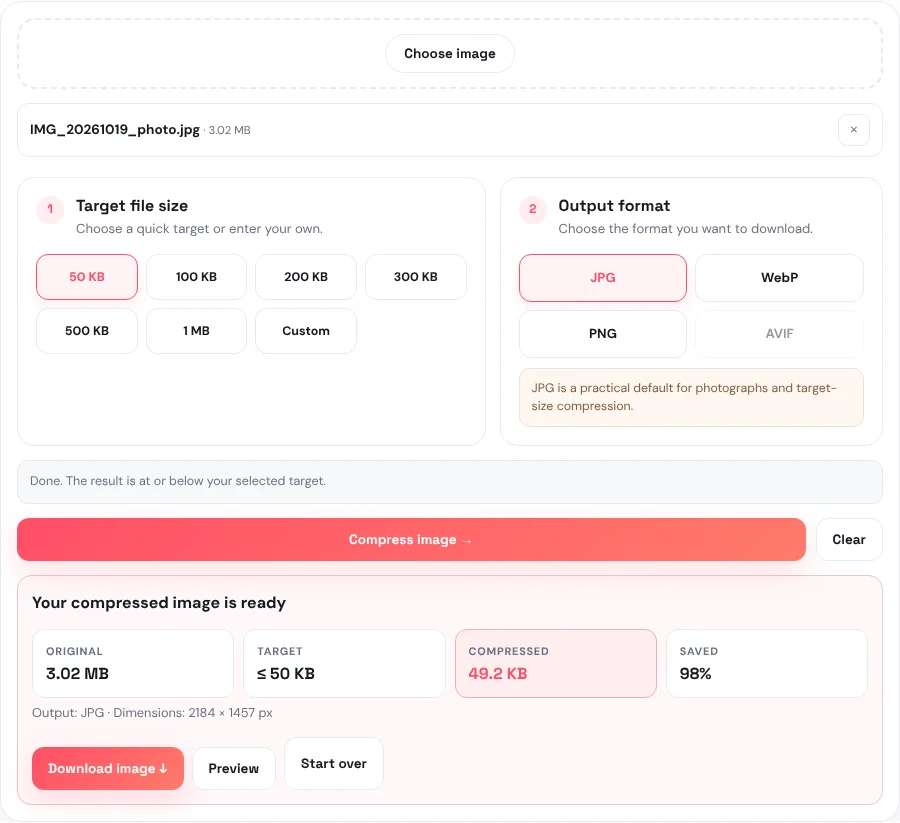
The tool finds the best quality that fits at or under your target, and shows the final size and dimensions before you download. If quality alone is not enough to get that small, it also scales the picture down a little.
For strict forms, aim slightly under the limit. The tool counts 1 KB as 1,024 bytes, but some websites count 1,000. For a 50 KB limit, choose Custom and enter 48 KB, and you are safe either way.
Tip: always check the result before you upload it. Open the downloaded file and zoom in on the face or the signature. If it is clear, you are done.
Common size limits for photos and signatures
Every form sets its own rules, so the official notice is always the final word. These are the limits you will see most often:
| What you are uploading | Typical file size limit | What to choose in the tool |
|---|---|---|
| Passport-style photo for an exam or job form | 20–50 KB | 50 KB, or Custom 20–30 KB |
| Scanned signature | 10–20 KB | Custom 15 KB |
| Thumb impression or small ID scan | 20–50 KB | Custom 30 KB |
| Document photo or certificate | 100–300 KB | 100 KB or 200 KB |
| Profile picture for a website or app | under 1 MB | 500 KB or 1 MB |
The Custom box accepts anything from 10 KB to 500 KB in KB mode, and from 0.01 MB to 10 MB in MB mode.
When you also need exact dimensions
Many forms ask for a size in kilobytes and in pixels, for example "200 × 230 pixels, 20–50 KB". Doing it in this order gives the sharpest result:
- Crop the photo so only your head and shoulders show, using Crop Image. A tight crop keeps the face large and clear.
- Resize it to the exact width and height with Resize Image.
- Compress it to the file size limit with Compress Image.
Resizing first matters. A 4,000-pixel-wide photo has to be compressed very hard to reach 50 KB, which makes it blotchy, and the compressor may shrink it to dimensions the form does not accept. A photo already at 200 × 230 pixels usually fits under 50 KB with almost no visible loss.
If the result looks blurry
- Resize before compressing. This is the most common fix. Fewer pixels means less compression is needed to reach the same file size.
- Crop away empty background. Plain walls and margins still take up space in the file.
- Use a brighter, evenly lit photo. Dark, grainy photos compress badly because the grain looks like detail to the compressor.
- For signatures, scan on plain white paper with a dark pen. A clean, high-contrast signature stays crisp even at 10–15 KB.
JPG, PNG or WebP?
Use JPG for forms. It is accepted almost everywhere and is the best choice for photos at small sizes. PNG keeps every pixel exactly and is larger, so it rarely reaches 20–50 KB for a photo. WebP and AVIF make smaller files and suit websites, but many government and exam portals do not accept them yet.
If your photo is in another format, such as HEIC from an iPhone, convert it first with the Image Converter or HEIC to JPG.
Frequently asked questions
How do I reduce a photo to 20 KB?
Open Compress Image, choose Custom, type 20 and keep KB selected, then compress. If the face looks blurry, resize the photo to the dimensions the form asks for first, then compress again.
Is it safe to compress my ID photo or signature online?
With this tool, yes: the image is compressed inside your browser and is never uploaded to our server, so nobody else receives a copy.
Why does the form still say my file is too big?
Some websites count 1 KB as 1,000 bytes, while the tool counts 1,024. Aim a little under the limit, for example Custom 48 KB for a 50 KB limit, and make sure you are uploading the downloaded file, not the original.
Does it work on my phone?
Yes. The tool works in the browser on Android phones and iPhones as well as on computers. Downloaded images go to your Downloads folder or Files app.
Can I compress an image to an exact size like exactly 50 KB?
Compression can only aim at a size, because the result depends on the picture. The tool gets as close as it can under your target, which is what upload forms need.