How to Merge PDF Files Into One (Phone and Computer, Free)
Need to send one PDF instead of five? Here is how to combine PDF files into a single document in the right order, on any phone or computer, free and without uploading them.
Job portals, visa applications and college admissions often allow only one upload, but your documents are in separate PDFs: a form, a certificate, an ID. Emailing five attachments is messy too. This guide shows how to combine them into a single PDF, in exactly the order you want, on a phone or a computer, free and without uploading anything.
Merge PDFs in 4 steps
- Open the free Merge PDF tool.
- Tap Choose PDF files and select all the PDFs you want to combine, or drag them onto the page. You need at least two.
- Put them in order with the ↑ and ↓ buttons next to each file. Remove a wrong file with ×.
- Tap Merge PDFs. The combined file downloads straight away, and a Download merged PDF button appears in case you need it again.
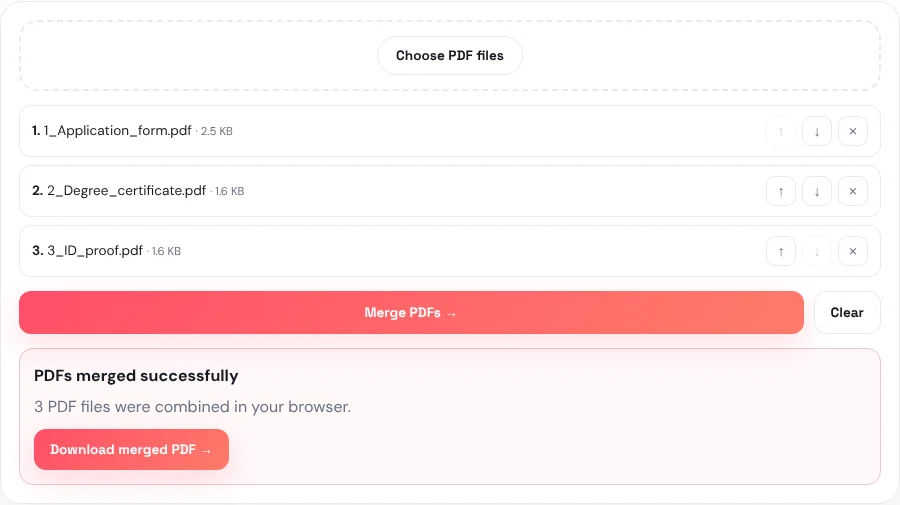
The merged file is named merged-pdf- followed by today's date, for example merged-pdf-2026-10-24.pdf. Every page of every file is included, in the order shown in the list. Rename it to something clear, such as Rahul-Sharma-documents.pdf, before you upload or send it.
Private by design: the files are joined inside your browser. They are never uploaded to our server, which matters when you are merging ID documents, bank statements or contracts.
Getting the order right
The list shows a number before each file (1, 2, 3…). That number is its position in the merged PDF. Files are added in the order you select them, so it is normal to fix the order afterwards:
- ↑ moves a file one place up, ↓ one place down. They work with a mouse, a keyboard or a finger.
- Forgot a file? Tap Choose PDF files again. New files are added to the end of the list; the ones already there stay.
- Clear empties the list so you can start again.
A tip that saves time: if you merge the same kind of set often, name your files with a number first, such as 1_Application_form.pdf, 2_Degree_certificate.pdf. Then they sort themselves in the file picker and you rarely need the arrows.
On a computer, you can also select several files at once in the file picker: hold Ctrl (Windows) or Cmd (Mac) and click each PDF, or drag a whole group of PDFs from a folder straight onto the page.
Many portals expect a particular order, for example the application form first, then certificates, then ID. If the instructions give an order, follow it exactly.
Merging PDFs on a phone
The tool works in the browser on Android and iPhone; there is nothing to install.
- Android: tap Choose PDF files, then long-press the first PDF in your Downloads or Files app and tap the others to select several at once.
- iPhone: tap Choose PDF files, then Browse, and use Select in the Files app to pick several PDFs. PDFs saved from email or WhatsApp are usually under On My iPhone → Downloads.
- The merged PDF is saved to your downloads. On iPhone, find it in Files → Downloads.
If your phone only lets you pick one file at a time, that is fine: pick one, tap Choose PDF files again, pick the next, and so on. Each one is added to the list.
Adding photos or scans to the PDF
Merge PDF combines PDF files only. If one of your documents is a photo (JPG or PNG), turn it into a PDF first:
- Open JPG to PDF, choose the photo or photos, and convert them.
- Then add that new PDF to Merge PDF with your other files.
If all of your documents are photos, for example pictures of each page of a form, you do not need to merge at all: JPG to PDF can put several photos into one PDF directly.
Merging only some pages
Merge PDF always takes every page of each file. To include only certain pages, for example page 1 of a long bank statement:
- Open Extract PDF Pages and pull out the pages you need into a new, smaller PDF.
- Merge that smaller PDF with the others.
You can also merge first and tidy up afterwards, as described next.
After merging: size, rotation and checks
| Problem in the merged PDF | Tool that fixes it |
|---|---|
| A page is in the wrong place, sideways, or not needed | Organize PDF: reorder, rotate and delete pages on one screen |
| The file is too big to upload or email | Compress PDF: shrinks scanned pages and photos |
| You need only part of it for another form | Extract PDF Pages |
Merging does not shrink anything: the merged file is roughly the size of all the files together. If you merge several scans, the result can easily pass a 2 MB upload limit. Compress it afterwards; our guide on compressing a PDF to under 1 MB or 100 KB explains which level to choose.
Before you send it, open the merged PDF and scroll through every page once. It takes ten seconds and catches a missing or upside-down page.
If something goes wrong
- "…is password-protected." A locked PDF cannot be merged. If you know its password, remove it with Unlock PDF, then add the unlocked copy.
- "Select at least 2 PDFs." Merging needs two or more files in the list.
- "No PDF files found." The tool only accepts PDFs. Convert photos with JPG to PDF first; for Word files, save them as PDF first.
- A file fails to load. The tool names the file that caused the problem. It may be damaged or not really a PDF. Try opening it in a PDF viewer; if it opens, save or print it to a new PDF and try again.
- Very large files on a phone. The work happens on your device, so the practical limit is your phone's memory. If merging many big scans fails, compress them first or merge them on a computer.
Frequently asked questions
How do I merge PDF files into one for free?
Open Merge PDF, choose two or more PDFs, put them in order with the ↑ and ↓ buttons, and tap Merge PDFs. The combined file downloads immediately. There is no sign-up and no watermark.
How many PDFs can I merge at once?
There is no fixed number. You need at least two, and the practical limit is your device's memory, since the files are combined in your browser.
Can I merge PDFs on my iPhone or Android phone?
Yes. The tool runs in the phone's browser. Choose the PDFs from your Files or Downloads app, and the merged PDF is saved back to your downloads.
Will merging reduce the quality of my PDFs?
No. Pages are copied as they are, so text, images and quality stay the same. That is also why the merged file is about as big as the originals together.
Are my files uploaded when I merge them?
No. The PDFs are combined inside your browser and never sent to our server.
Can I merge a JPG with a PDF?
Convert the JPG to a PDF first with JPG to PDF, then merge it with your other PDFs.