How to Reduce a Signature Image to 10–20 KB for Online Forms
Exam or job form asking for a signature under 20 KB? Here is how to photograph, crop and compress your signature to 10–20 KB so it stays sharp and gets accepted.
Almost every online application — government exams, university admissions, job portals, bank forms — asks you to upload your signature as a small image, often between 10 KB and 20 KB. A phone photo of your signature is usually hundreds of KB, so the form rejects it. This guide shows how to get your signature under the limit while keeping every stroke clear.
Reduce a signature to 15 KB in 4 steps
- Photograph your signature on plain white paper (tips below).
- Crop it tight with Crop Image, so only the signature and a small margin remain.
- Open Compress Image, choose the cropped photo, tap Custom and type the size, for example 15 KB.
- Keep JPG, tap Compress image, check the result and tap Download image.
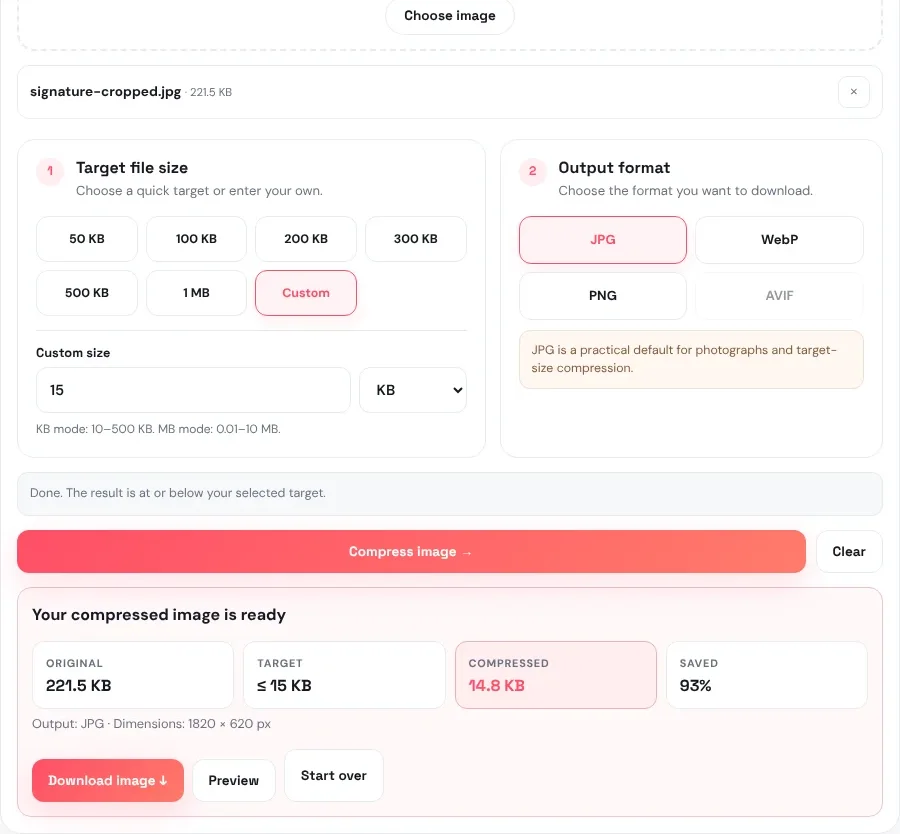
Both tools work in your phone's or computer's browser, and your signature is never uploaded to our server — important for something as personal as a signature.
Take a signature photo that compresses well
A clean, high-contrast signature compresses to a tiny file and stays crisp. A grey, shadowy one turns blotchy. Before you compress anything:
- Use plain white paper — no lines, no grid, no printing behind the signature.
- Sign with a black or dark blue pen with a medium nib, so strokes are bold. Many forms ask for black or blue ink; follow the notice.
- Sign at your normal size, not tiny and not stretched, with some space around it.
- Shoot in daylight, from directly above, with no shadow of your phone or hand on the paper.
- Hold steady and tap to focus on the ink. Check the photo is sharp before moving on.
- If the photo came out sideways, straighten it with Rotate Image.
Crop tight — the most important step
Every bit of empty paper still takes space in the file. A full phone photo with a small signature in the middle has to be compressed so hard that the ink becomes blurry. Cropping first fixes this:
- Open Crop Image and choose your photo.
- Drag the box so it surrounds the signature with a small, even margin on all sides.
- Tap Crop Image and download.
In our example, cropping cut the photo from a 3000 × 2000 picture to 1820 × 620 pixels around the signature — and the compressed result then fitted under 15 KB with clear, unbroken strokes.
When the form also asks for pixel size
Some forms specify dimensions as well as file size, for example a signature of a certain width and height in pixels. In that case:
- Crop to roughly the same shape as the required size (most signature boxes are wide and short).
- Resize to the exact width and height with Resize Image (Exact size, aspect ratio unlocked).
- Compress to the KB limit with Compress Image.
At small pixel sizes the file is already tiny, often under the limit before you compress at all. Our guide on resizing a photo to exam size in pixels explains the resize step in detail, and the same order works for your photo upload.
Common signature limits and what to choose
| Form says | Choose in Compress Image | Why |
|---|---|---|
| 10–20 KB | Custom 15 KB | Safely inside both limits |
| Under 20 KB | Custom 18 KB | Leaves room for how the site counts KB |
| Under 30 KB | Custom 25–28 KB | Clearer strokes, still under the limit |
| Under 10 KB | Custom 10 KB, after resizing smaller | 10 KB is the tool's minimum; a smaller image keeps strokes sharp |
Why aim a little under? The tool counts 1 KB as 1,024 bytes, but some websites count 1,000. Choosing a value slightly below the limit avoids a surprise rejection. Rules differ between forms and change over time, so always follow the official notice for the size, dimensions, ink colour and format.
Need to upload a photo as well? Our guide on compressing an image to 50 KB, 20 KB or 100 KB covers the photo side.
Phone camera or scanner?
Either works. A scanner gives perfectly flat, evenly lit pages, so the signature compresses very cleanly; scan in colour or greyscale at a normal resolution and save as JPG. A phone camera is quicker and good enough when you follow the photo tips above. With a phone, the two things that matter most are even light and shooting straight from above, so the signature isn't stretched at an angle.
Avoid photographing a signature on a screen or taking a screenshot of a photo: both add blur and extra pixels that make the file harder to compress.
Keep a ready set of upload files
If you apply to several exams or jobs in a season, save time by preparing your files once:
- The original photo of your signature, kept untouched, so you can make new versions for different limits.
- A cropped master copy at full size.
- Compressed copies named by size, for example signature-15kb.jpg and signature-25kb.jpg.
- The same for your photo, such as photo-48kb.jpg at the required pixel size.
Keep them in one folder on your phone or computer. When a new form asks for a different limit, start from the cropped master copy, not from an already-compressed file, so quality stays as high as possible.
If it's rejected or looks blurry
- "File too large" after compressing: you may be uploading the original. Upload the downloaded file, and aim a little under the limit.
- Strokes look broken or blotchy: crop tighter, or resize to the form's pixel size first, so less compression is needed. Retake the photo with a darker pen if the ink is faint.
- Grey or shadowy background: retake the photo in brighter, even light; a cleaner background compresses better.
- Form wants JPG only: keep the output format on JPG. PNG keeps every pixel but is much larger at the same size.
- "Invalid dimensions": the form checks pixel size too. Resize to the exact width and height, then compress.
Need to sign a PDF document rather than upload an image? Use Sign PDF to add your signature directly to the document, without printing.
Frequently asked questions
How do I reduce my signature image to 20 KB?
Crop the photo tight around your signature with Crop Image, then open Compress Image, choose Custom, enter 18 KB and compress. Keep the output as JPG.
Can I compress a signature to 10 KB?
Yes. 10 KB is the smallest Custom value. For very small targets, crop tightly and resize the image smaller first so the strokes stay sharp.
Which pen colour is best for a signature upload?
A black or dark blue pen on plain white paper gives the clearest result. Always follow the ink colour the form asks for.
Why does my compressed signature look blurry?
Usually because too much empty paper is left around it, so the whole image is compressed hard. Crop tightly first, and use a bold pen and good light.
Is it safe to compress my signature online?
With this tool, yes. The image is processed inside your browser and is never uploaded to our server.
Can I do this on my phone?
Yes. Take the photo, then open Crop Image and Compress Image in your phone's browser. The final file is saved to your downloads.